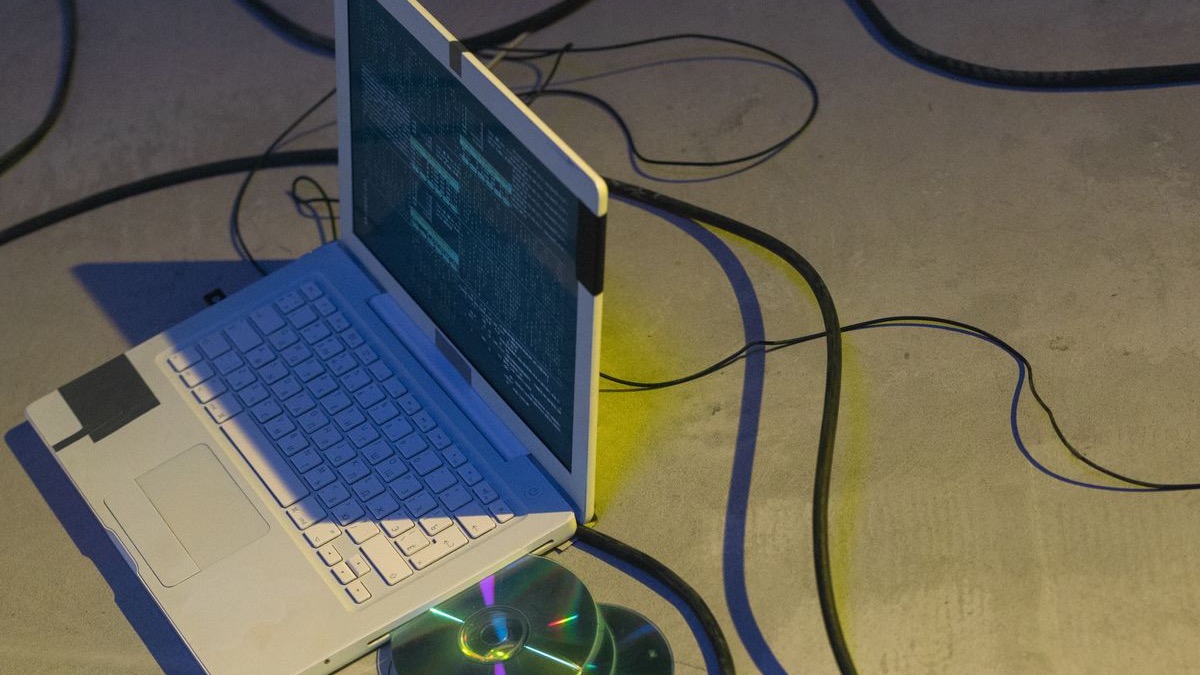
Streaming services keep raising prices and deleting shows you liked. Meanwhile a perfectly good computer is asleep in your closet. Jellyfin is a free, open-source media server - think of it as your own private streaming service. It runs on the old laptop, watches a folder of media files, and serves them with a slick menu to your TV, phone, and tablets. Everything stays inside your house. If you can install an app and copy-paste a few commands, you can do this.
Step 1: Rescue the laptop and wipe it
Dig out the laptop and make sure it powers on with the charger connected (a dead battery doesn’t matter - it’s a server now, it never leaves the desk). Copy off anything you want to keep, because the next step erases the whole machine. While you’re in there: if the fan sounds like a hair dryer, a can of compressed air through the vents buys the machine years.
Step 2: Make a Linux installer stick
On your everyday computer, download Linux Mint (free, from linuxmint.com - the “Cinnamon” edition is fine) and balenaEtcher (free, from etcher.balena.io). Etcher “flashes” the Mint download onto the USB stick - that means it copies the system onto it in a way the laptop can start from. Three clicks: pick the Mint file, pick the stick, flash. Mint is a good fit here because it installs easily on older machines and looks familiar to anyone who’s used Windows.
Step 3: Install Linux on the laptop
Plug the stick into the old laptop and turn it on while tapping the boot-menu key (usually F12, F9, or Esc - the startup screen names it in a corner). Pick the USB stick from the menu, then choose “Install Linux Mint” and accept the defaults, including “Erase disk.” Fifteen minutes and one reboot later the laptop is running a fresh, fast, supported operating system - probably the quickest it has felt in years.
Step 4: Install Jellyfin
Open the Terminal app on the laptop (it’s in the menu - a black window that takes typed commands) and paste this line, then press Enter:
curl https://repo.jellyfin.org/install-debuntu.sh | sudo bashIt asks for the password you created during install, then sets up the Jellyfin server and starts it automatically. When the text stops scrolling, Jellyfin is running. You never need to touch this again - it restarts itself whenever the laptop boots.
Step 5: Point Jellyfin at your media
Make a folder for your collection - for example a Media folder with Movies, Shows, and Music inside - and copy your files in. Name files simply (Movie Name (Year).mp4 is the pattern Jellyfin matches best). Then, on the laptop, open a web browser and go to http://localhost:8096 - that address means “this machine, port 8096,” which is Jellyfin’s front door. The setup wizard walks you through making an account and adding your Movies and Shows folders as libraries. Jellyfin fetches posters, descriptions, and cast lists on its own.
Step 6: Find the server from your other devices
On the laptop, click the network icon and look at the connection details for the machine’s local IP address - an address like 192.168.1.42 that only exists inside your home network. On your phone or TV, install the free Jellyfin app, and when it asks for a server, type http:// plus that address plus :8096 - for example http://192.168.1.42:8096. Log in and your library appears, posters and all. Jellyfin apps exist for Roku, Fire TV, Apple TV, Android TV, iPhone, Android, and any web browser.
Step 7: Make it a proper appliance
Three settings turn the laptop into a set-and-forget server. First, in the laptop’s power settings, tell it never to suspend and (on most laptops) to ignore the lid closing - otherwise the server naps when you shut the lid. Second, plug it into the router with the ethernet cable if you can; wired streaming never stutters during the good part of the movie. Third, optional but nice: in your router’s settings, “reserve” the laptop’s IP address so it never changes - the setting is usually called DHCP reservation, and it means you’ll never have to re-type a new address into your TV.
Step 8: Close the lid and forget it
That’s the build. The laptop sits by the router with its lid closed, sipping about as much power as a nightlight - a fraction of what a desktop draws. Add files to the media folder whenever; Jellyfin notices on its own. If a stream ever stutters on the oldest hardware, set the app’s playback quality to a fixed 1080p bitrate - it stops the laptop from re-encoding video on the fly, which is the one job genuinely too heavy for a 2014 processor.
What worked and what didn’t
The first attempt at this used the laptop’s Wi-Fi from two rooms away, and movie night hit a buffering wheel twenty minutes in. The ethernet cable fixed it permanently - if you take one optional item from the materials list, take that one. Second honest note: subtitles inside some older .avi files can force re-encoding and stutter on very old machines; the same movie as an .mp4 played perfectly.
The math
A streaming budget of $40 a month is $480 a year, forever, for libraries that shuffle and shrink. This build is $0 up front if the laptop exists, roughly $8–12 a year in electricity, and the library only grows - including the family videos and ripped home DVDs no streaming service will ever have. The laptop was already paid for. Let it earn its keep.